Cách kết nối Cyberduck với Tenbyte T2 object storage trong vài phút
Kết nối Cyberduck với Tenbyte T2 object storage trong vài phút với hồ sơ sẵn có. Bao gồm các ưu điểm của T2 (độ bền mười một chín, không phí egress, $10/TB) và hướng dẫn cho macOS, Windows và Linux.
Tenbyte T2 là object storage tương thích S3. Bất kỳ công cụ nào đã giao tiếp với Amazon S3 đều có thể dùng được: AWS CLI, rclone, s3cmd và Cyberduck, ứng dụng desktop miễn phí cho macOS và Windows. Kết nối Cyberduck chỉ mất vài phút, sau khi vượt qua một cài đặt thường làm người dùng bối rối.
Cài đặt đó đã có giải pháp, và chúng tôi đã đóng gói nó thành một hồ sơ kết nối sẵn. Tải về, mở hồ sơ, thêm khóa của bạn, và bạn đã kết nối. Các bước kết nối được đưa lên đầu; nếu muốn biết thêm về những gì T2 cung cấp và ai đang sử dụng, phần đó nằm ở cuối.
Cách nhanh nhất: tải hồ sơ
Tải tệp hồ sơ tại đây:
⬇ Tải về Tenbyte Cyberduck Profile
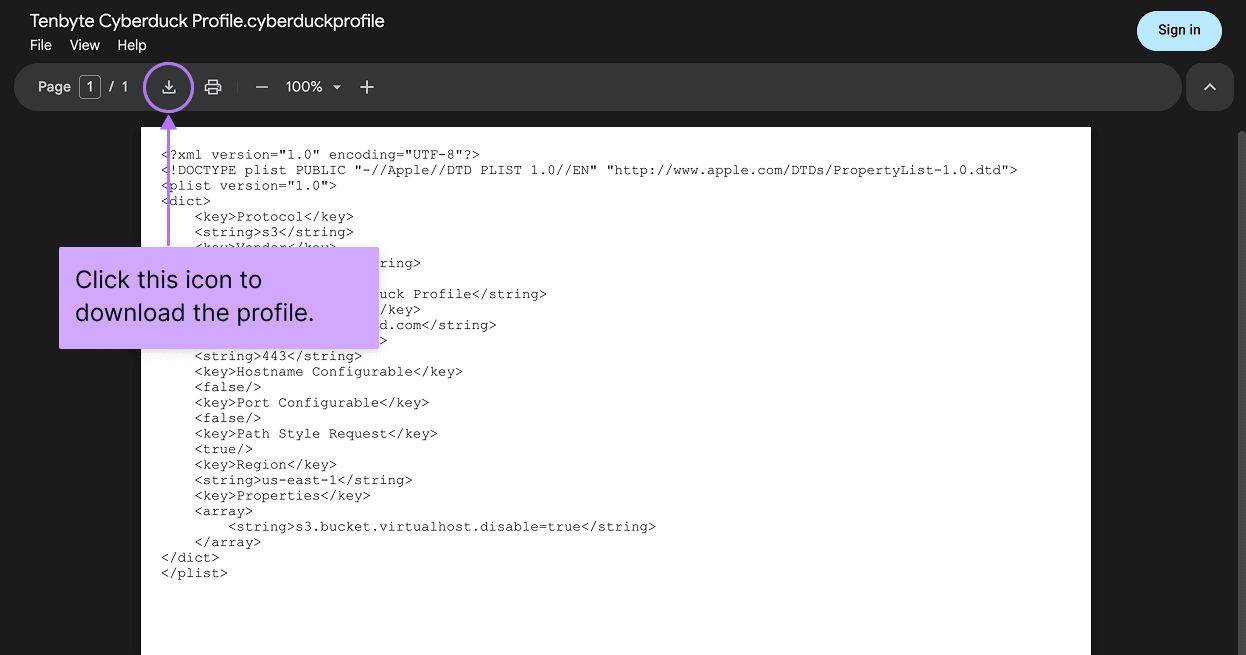
Tệp duy nhất này đã chứa mọi thiết lập đúng: endpoint T2, cổng, và thiết lập địa chỉ mà Cyberduck thường sai khi làm việc với storage tương thích S3. Không cần chỉnh sửa gì bên trong và không có lệnh nào phải chạy. Nó không chứa mật khẩu, vì vậy bạn có thể chia sẻ cho đồng nghiệp và mỗi người sẽ thêm khóa riêng khi kết nối.
Một điều bạn vẫn cần: khóa S3 của mình
Hồ sơ xử lý các thiết lập kết nối, nhưng không thể lưu trữ thông tin xác thực cho bạn. Bạn cần một cặp access key và secret key S3 từ Tenbyte.
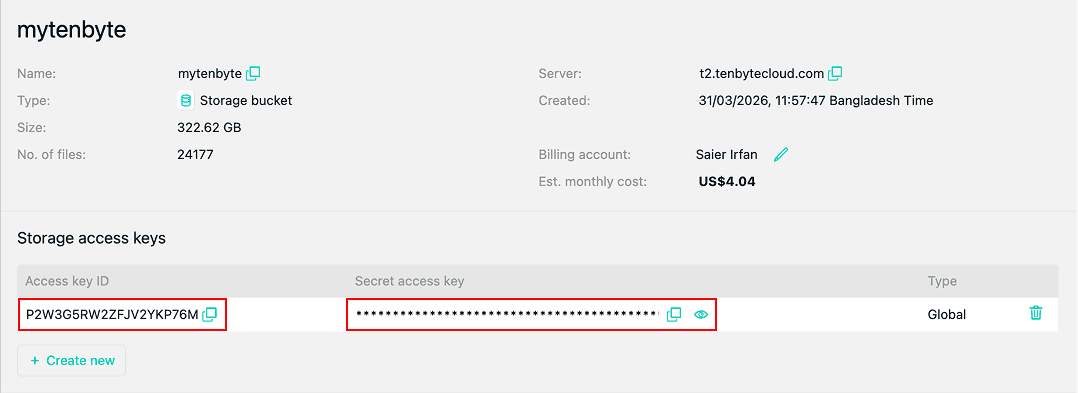
Một cảnh báo giúp tránh nhầm lẫn: những khóa này không giống với API key của Tenbyte. API key dùng cho phần quản lý tài khoản. Object storage sử dụng một cặp access key và secret key S3 riêng. Bạn sẽ tìm thấy chúng trong console Tenbyte dưới mục object storage, được liệt kê là accessKey và secretKey. Sao chép cả hai và giữ chúng ở nơi dễ lấy.
macOS
- Cài đặt Cyberduck từ cyberduck.io/download nếu bạn chưa có. Nó miễn phí.
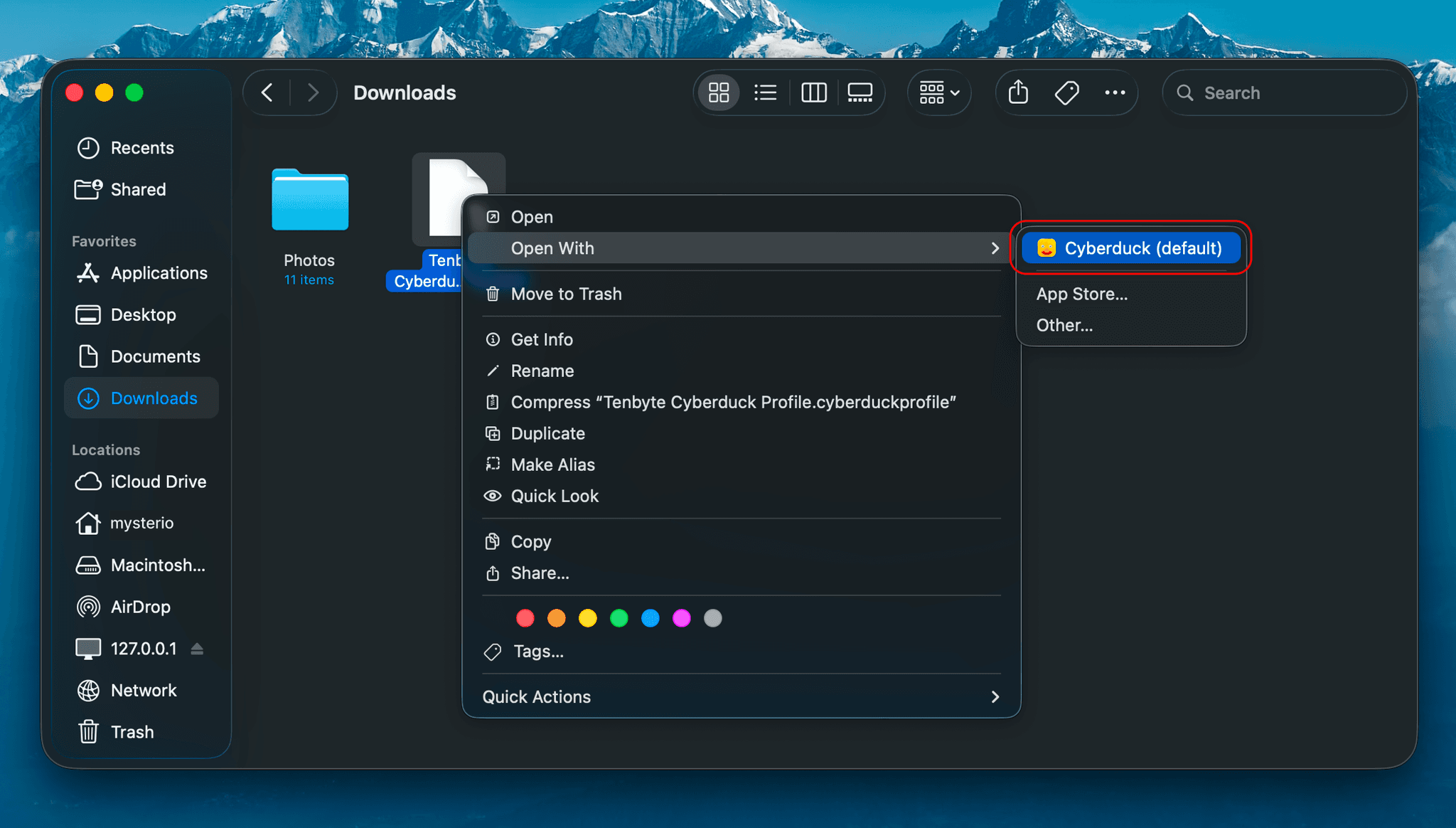
- Tải hồ sơ và double‑click để mở. Cyberduck sẽ tự động đăng ký, và Tenbyte Cyberduck Profile sẽ xuất hiện trong danh sách loại kết nối.
- Mở chế độ Bookmarks và nhấn + ở góc dưới‑trái để tạo bookmark mới.
- Trong menu protocol ở trên cùng, chọn Tenbyte Cyberduck Profile. Server và port sẽ tự điền.
- Nhập access key vào trường username và secret key vào trường password.
- Đóng cửa sổ chỉnh sửa và double‑click bookmark để kết nối.
Các bucket của bạn sẽ hiện ra, bạn có thể mở và di chuyển file ngay lập tức.
Windows
Các bước tương tự, vì hồ sơ đã chứa giải pháp:
- Cài đặt Cyberduck từ cyberduck.io/download nếu bạn chưa có.
- Double‑click hồ sơ đã tải. Cyberduck sẽ nhập nó.
- Thêm bookmark mới và chọn Tenbyte Cyberduck Profile làm protocol.
- Nhập access key và secret key.
- Kết nối.
Không cần file cấu hình, không cần chỉnh sửa registry. Hồ sơ đã thực hiện phần đó.
Linux
Lưu ý: không có ứng dụng Cyberduck desktop cho Linux. Nó chỉ hỗ trợ macOS và Windows, vì vậy nếu bạn thấy gì đó tự xưng là Cyberduck cho Linux, đó không phải phiên bản chính thức.
Có một công cụ dòng lệnh gọi là Cyberduck CLI, công cụ duck, chạy trên Linux và đọc cùng một hồ sơ. Nếu bạn thoải mái với terminal, chỉ cần đặt hồ sơ vào vị trí thích hợp và sử dụng từ đó. Nếu muốn công cụ thân thiện hơn, rclone cũng hoạt động tốt với T2: chỉ định t2.tenbytecloud.com, thêm khóa và bật chế độ path‑style addressing.
Nếu bucket không mở được
Hầu hết các vấn đề ở đây xuất phát từ một trong hai nguyên nhân.
Lỗi DNS có đề cập đến tên bucket trong hostname cho thấy fix địa chỉ chưa được áp dụng. Tải lại hồ sơ và nhập lại, đó là cách khắc phục toàn bộ.
Một lỗi SignatureDoesNotMatch liên quan đến khóa, không phải kết nối. Sao chép lại access key và secret key, kiểm tra không có khoảng trắng thừa khi dán.
Quá trình rất đơn giản: một lần tải, hai khóa của bạn, và bạn đã sẵn sàng. Hồ sơ xử lý thiết lập khiến storage tương thích S3 như T2 hoạt động, vì vậy bạn không cần lo lắng về nó.
Tại sao lưu trữ trên Tenbyte T2
Storage này hỗ trợ giao thức S3, vì vậy bạn chỉ cần chuyển các công cụ hiện có sang endpoint và khóa mới. Độ bền được công bố là 99.999999999% mỗi năm, hay mười một chín. Các cluster chạy Ceph, tuân theo chuẩn tham chiếu của Red Hat, không giới hạn throughput.
Không có phí egress, nên việc đọc lại dữ liệu của bạn không tốn phí—đây thường là chi phí lớn nhất của các đám mây công cộng. Giá bắt đầu từ $10/TB/tháng, Tenbyte khẳng định khoảng 90% thấp hơn so với các đám mây lớn. Nếu bạn chuyển từ nhà cung cấp S3 khác, quá trình thường chỉ là đổi credentials và endpoint, không cần viết lại mã; dịch vụ di chuyển có thể sao chép dữ liệu hiện có trong một lần hoặc theo giai đoạn.
Ai sử dụng
Hầu hết người dùng object storage đều gặp cùng một vấn đề: một khối lượng file ngày càng tăng không phù hợp để lưu trong database và không nên nằm trên đĩa của một server duy nhất. Các sản phẩm SaaS lưu trữ upload của người dùng, tài sản ứng dụng, log và backup ở đây. Các trang thương mại điện tử lưu ảnh sản phẩm, video, hoá đơn và danh mục. Các đội phát triển đẩy artifact CI/CD, package và file triển khai. Các công ty truyền thông và nhà sáng tạo lưu video, audio, hình ảnh và bản ghi stream, thường kèm CDN để phát. Các nhóm AI/ML lưu dataset huấn luyện, mô hình và kết quả sinh ra.
Nó cũng phù hợp với dữ liệu cần lưu trữ lâu dài hơn là phục vụ ngay. Doanh nghiệp tập trung tài liệu, chia sẻ file và lưu trữ tuân thủ. Các cơ quan chính phủ và công cộng lưu trữ hồ sơ, dữ liệu GIS và tài sản dịch vụ công dân, nơi quyền sở hữu dữ liệu quan trọng. Nhà cung cấp y tế lưu trữ ảnh y khoa, hồ sơ bệnh nhân và dữ liệu phòng thí nghiệm. Các trường đại học và nhóm nghiên cứu giữ dataset, bản ghi giảng dạy và thư viện số. Backup và snapshot phục hồi thảm họa có nơi lưu trữ rẻ, bền, và các nhà cung cấp hosting, MSP bán lại dung lượng cho khách hàng. Các ứng dụng cloud‑native, từ workload Kubernetes tới serverless functions, dùng nó làm kho lưu trữ bền.
Các loại workload thường gặp:
- Tài sản ứng dụng, nội dung tĩnh website và upload của người dùng
- Hình ảnh, video và audio
- Backup database và snapshot VM
- Log và lưu trữ tuân thủ
- Dataset AI và data lake
- Artifact phần mềm và container image
Read More
Block Storage so với Object Storage: Bạn Thực Sự Cần Loại Nào?
So sánh block storage và object storage trong cloud computing. Tìm hiểu về hiệu năng, giá cả, trường hợp sử dụng và những sai lầm phổ biến cần tránh.

Edge Computing: Công Nghệ Đột Phá Im Lặng Đang Thay Đổi Đám Mây
Khám phá cách edge computing mang lại công nghệ nhanh hơn, an toàn hơn và thông minh hơn, từ game đến y tế, giúp cuộc sống kết nối của bạn trở nên mượt mà và hiệu quả hơn.
Cắt giảm chi phí Cloud và tăng hiệu quả với Tenbyte T2 Object Storage
Tenbyte T2 Object Storage: tương thích S3. Không phí ẩn. Storage bảo mật, có thể mở rộng cho media, backup và big data.
Snapshot và Backup: Hiểu vai trò của chúng trong bảo vệ dữ liệu hiện đại
Learn why snapshots alone fail during ransomware attacks and how backups protect your cloud data from permanent loss and long recovery times.